Stock
Everything tracked at this shop: how much you hold, how long it will last, and what it is worth. The place to put a number right.
Where: menu → Inventory → Stock.
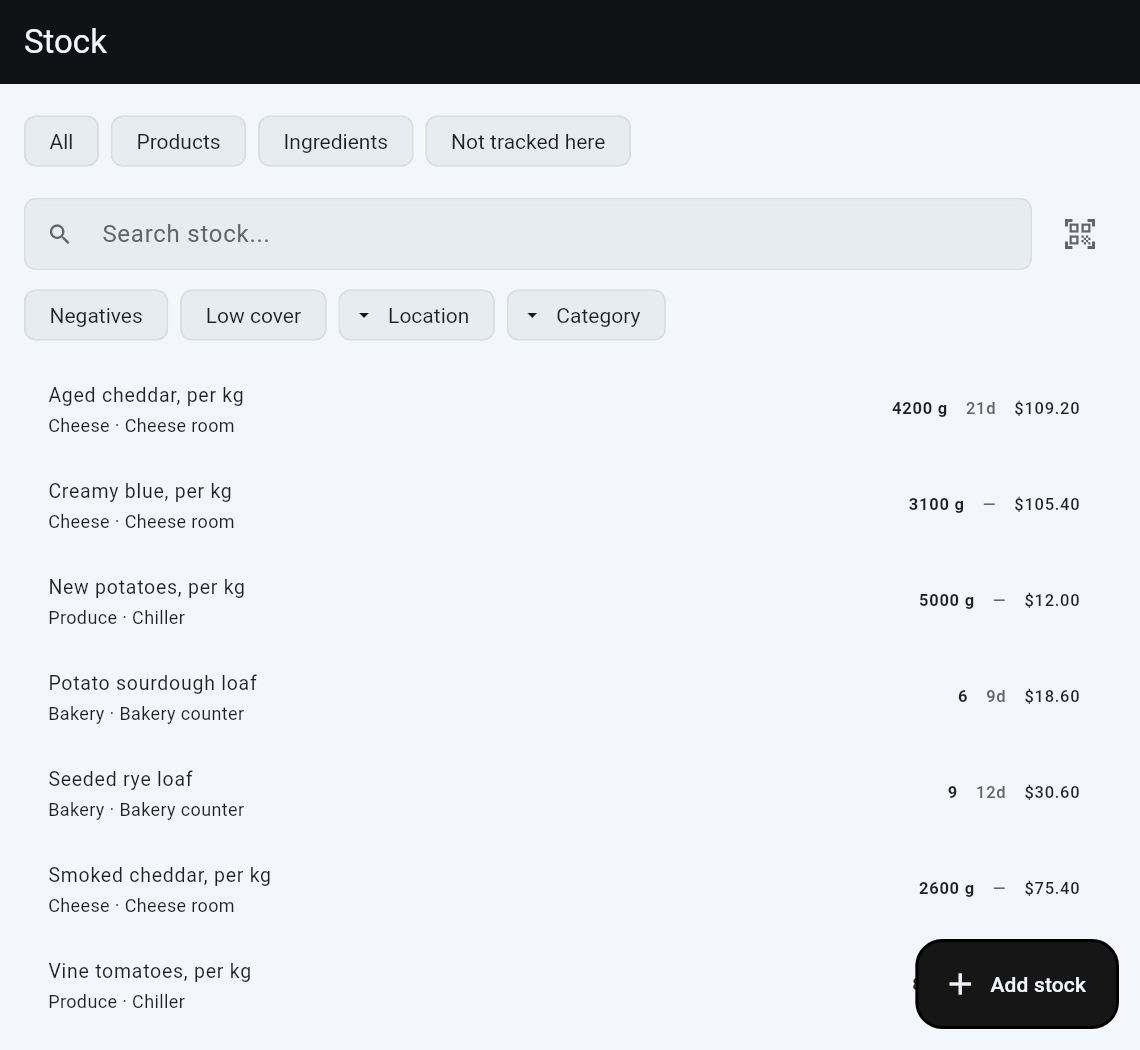
Reading the list
One row per item. The facets at the top let you pick what you want to see:
| Facet | Shows |
|---|---|
| All | Everything this shop tracks |
| Products | Things you sell that are tracked as themselves |
| Ingredients | Everything else you track |
| Not tracked here | Anything one of your recipes names that this shop does not track yet. These rows show a name and a unit only, with no on-hand, because there is nothing counted yet to show. |
| Column | Means |
|---|---|
| Name, then category · location | What it is and where it lives |
| On hand | In the item's own unit. Red when below zero. Amber, with warn at 6 beside it, once it is at or under its Warn me at. |
| Days left | About how many days what you hold now will last, at last week's rate of selling. — if nothing sold last week. |
| Value | On hand at its average cost, before tax |
The search box matches the name. On a phone or tablet there is a camera button beside it: point it at what is on the shelf and the item opens.
It reads the barcode the way a stocktake does, so the code printed on a case finds the item inside it -- not nothing, which is what searching for that number gives you. A code nothing has offers Add product; a product made from several ingredients says so, because a pizza is not a thing on a shelf.
A product you sell but do not track yet asks first: Start tracking Quince paste, 200g? Start tracking adds it to Stock and opens it, and from then on every sale takes one off. Not now leaves it as it was. This is how to load a shelf: scan each thing, start tracking it, and say how many you have.
The chips narrow the list:
| Chip | Shows |
|---|---|
| Negatives | Below zero: sold more than you received or counted. Count these. |
| At minimum | At or under its Warn me at. Appears once any item has one. |
| Low cover | Under 7 days left |
| Location, Category | Pick one. They appear once any item has one set. |
Products in sizes and colours
A product with sizes and colours is one row: Canvas shopping tote, 2 sizes, with the total on hand, the fewest days any size has left, and the value of them all. The total is amber when any size is at its minimum. Tap it to open its sizes, each named by its size -- Small, Large -- and tap a size to open it. A search or a chip that matches a size opens its product by itself.
Sizes are under Products, with the other things you sell. Stock left on the product itself from before it had sizes shows inside it as Not in a size; count it onto the right sizes and it goes.
Something appears here once it is tracked at this shop: Track stock on a product, a New ingredient, or anything a posted delivery brings in.
One item
Tap a row. The detail sheet shows the stats at the top, then lets you edit everything about it.
| Section | What it shows |
|---|---|
| On hand | What the system believes you hold |
| Days left | As in the list |
| Avg cost | What one unit cost you, averaged over what you hold, before tax. set by the first delivery means you hold some but it has no cost yet; the first delivery gives it one. |
| Last count | When a count last checked it, or Never |
| Edit fields | Name, category, units, cost, location, Warn me at, Good for. Two of them lock, for reasons below. |
| Suppliers | Each supplier's own code for it. Once you have a supplier. |
| Outers | Each way it arrives, with its barcode and Sell this outer for any you want to sell as a product |
| Where used | Every product and product option that takes it, and how much. Tap one to open it. |
| What if | Opens Margins to try a new cost. It names the unit you will be typing in -- the base unit, not the one the list shows. |
Three buttons: Log wastage (see Wastage), Adjust, and Save. The sheet is a form: nothing is kept until you press Save. The ✕ at the top closes it; so does tapping above it or going back. Any way out, or any of the other actions, asks first if you have unsaved changes. Sell this outer is the exception -- it saves the item first, because the outer has to exist before something can be sold by it.
Suppliers
Each supplier that sells it, with their code for it and, under it, the outer it comes in from them. A delivery fills this in, code or not; change a code here, or tap A supplier and their code to add a supplier. The code can stay blank. The ✕ removes a supplier from this item only.
It appears once you have a supplier. Codes are part of the form: they are kept when you press Save.
Storage location
Where this item sits. Pick from the list, or New storage location to add one as you go.
The list is managed under Inventory → Setup → Storage locations, which is also where you rename one — and renaming moves everything in it, which is what you want when the shop gets rearranged.
Warn me at
The number you want to be told at. The till and the Inventory screen warn you once there are this many or fewer. Leave it blank for no warning.
Type it in the unit the item is shown in, or pick another from the list beside it -- kg for flour, or the bag it comes in. Each shop has its own, and each size of a product has its own, on that size's page.
At Marlow & Vine, the Hazelnut brownies are baked in the morning and kept in the cabinet with a tray in the back. Warn me at 6 puts them on the Inventory screen as Hazelnut brownie · 5, warn at 6 after the sale that takes them to 6 or fewer -- time to bring out the tray. The person selling sees it first, at the till: see Running low.
Below zero is not "at its minimum": it is on the below zero row instead.
Changing what an item is counted in clears it, as it clears the cost.
Good for
How many days it keeps once it is in the shop. Most things do not go off, so on an item that does not have one yet this is a single line, + Good for (how long it keeps). Tap it to fill it in.
It is not a best-before date. It is milk lasts a week, and it is enough for the Inventory screen to tell you what to use first: anything whose oldest delivery is within two days of the end of its life, or past it, goes on that list.
Set it on the few things that would otherwise be thrown out, and leave the rest alone. For anything with a date printed on the pack, use Batches instead.
Batches
The batch numbers and best-before dates on the shelf -- as many as there are. A wheel of brie from two deliveries is two batches. On an item with no batches yet this is a single line, + Batches and best-before dates. Tap it to start.
Add batch asks for the Batch number, the Best before date, and How many of that batch you have. One of number and date is enough; how many is always needed. Tap a batch to change it, or the bin to remove it. Batches are part of the form: they are kept when you press Save.
A delivery line with a batch on it adds it here for you -- see Receiving a delivery.
Each batch says about how many are left. That is worked out, not counted: nothing at the till asks which batch you sold, so the app takes the soonest-dated as sold first and works back from what is on hand. If you had 3 quince paste from batch A (best before December) and 1 from batch B (February), and you have sold 2, it shows A with about 1 left and B with 1. A batch shown as sold through has nothing left by that reckoning. If you sell a newer batch first, change the numbers here.
Batches near their date go on to use first on the Inventory screen, and Expiring lists them by date.
When a field is locked
| Locked | Why | What to do |
|---|---|---|
| Name and Show as, on something you sell as it comes | They belong to the product. Its name is copied onto the item every time the product is saved, and its recipe is written in the Show as unit. | The button on the sheet opens that product. |
| Base unit, once there is stock on hand | The number on the shelf has no unit stored beside it. Changing grams to each would leave 12,500 grams reading as 12,500 items. | Count it to zero first, or leave it. |
| Base unit, once a recipe uses it | A recipe line of 500 means 500 of whatever the base unit is. Switching flour from grams to kilos would turn half a kilo into half a tonne in every recipe that names it. | The recipes are listed under Where used on the same sheet. Change them first. |
Adjust
For when the number is wrong and you know the right one.
The dialog shows System says: and what it believes. Then choose:
| Mode | Use it when |
|---|---|
| Set actual quantity | You have looked. Type what is there, in the unit the label shows. Before you save it tells you how far out the system was: That is 2 more than the system thinks. |
| Add or remove | You know the difference. Positive adds, negative removes. |
Then a Reason, and a Note (optional) if it helps the next person. Save records it straight away.
| Reason | For |
|---|---|
| Opening stock | What was on the shelf to start with. Offered, and chosen for you, on an item that has never had stock. Each size of a product is counted in this way. |
| Correction | The number was wrong. The default once an item has stock. |
| Made here | You made or baked it in your own kitchen: a tray of almond croissants into the cabinet. Only the croissants go on; the flour and butter they used do not come off. |
| Found | Stock turned up that was not on the books |
| Shrinkage | Gone, and you do not know where |
| Expired, Dropped/Spilled, Quality Issue | Losses. Better logged as wastage, which the day report counts and an adjustment does not. |
| Other | Say what in the note |
Typing the number the system already has closes the dialog without recording anything. An adjustment is valued at the item's average cost, so the stock value moves with it.
Set the cost before adding stock. Stock is valued at what it cost when it came in, and stays at that value. Stock added to an item with no cost is valued at nothing, even after a cost is set, so the dialog warns you first. To put it right afterwards, set the actual quantity to 0, then back to what is there.
Adjust, wastage or a stocktake?
| Use | When |
|---|---|
| Log wastage | You threw it out, gave it away, or it came back unsellable. It shows on the day report. |
| Adjust | One item's number is wrong, and you know by how much |
| A stocktake | You are checking a shelf, a location, or the whole shop |
Good to know
- Nothing here is edited or deleted. A wrong adjustment is put right with another one.
- Anyone who can open Stock can adjust.
- Negative is a finding, not a fault. It usually means a delivery that was never posted, or tracking switched on before anything was counted.
- To change an item's name, unit or outers, open it in Stock and edit it in the detail sheet -- or, for something you sell as it comes, in its product's Stock section.