Tables
Draw your room once and put your tables on it. Staff pick a table from the plan when they take an order, and each table gets a QR code customers can scan to order from their seat.
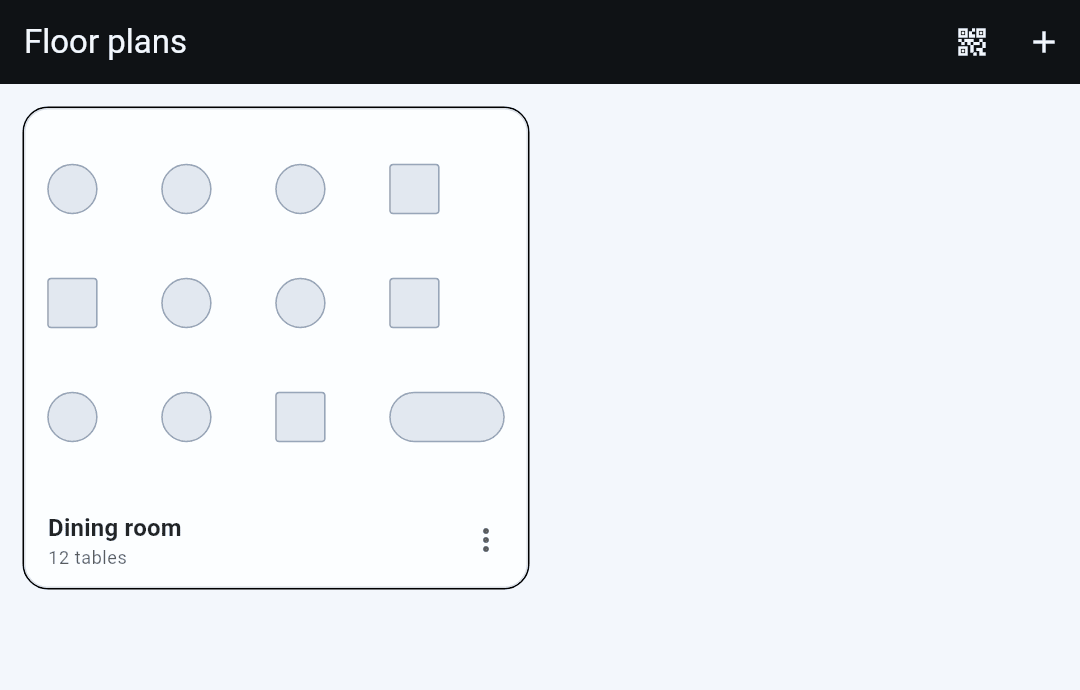
Where: menu → Sales → Setup → Tables. The screen is headed Floor plans.
Set up
- Tap + to start a floor plan. Name it after the room: "Dining room", "Courtyard".
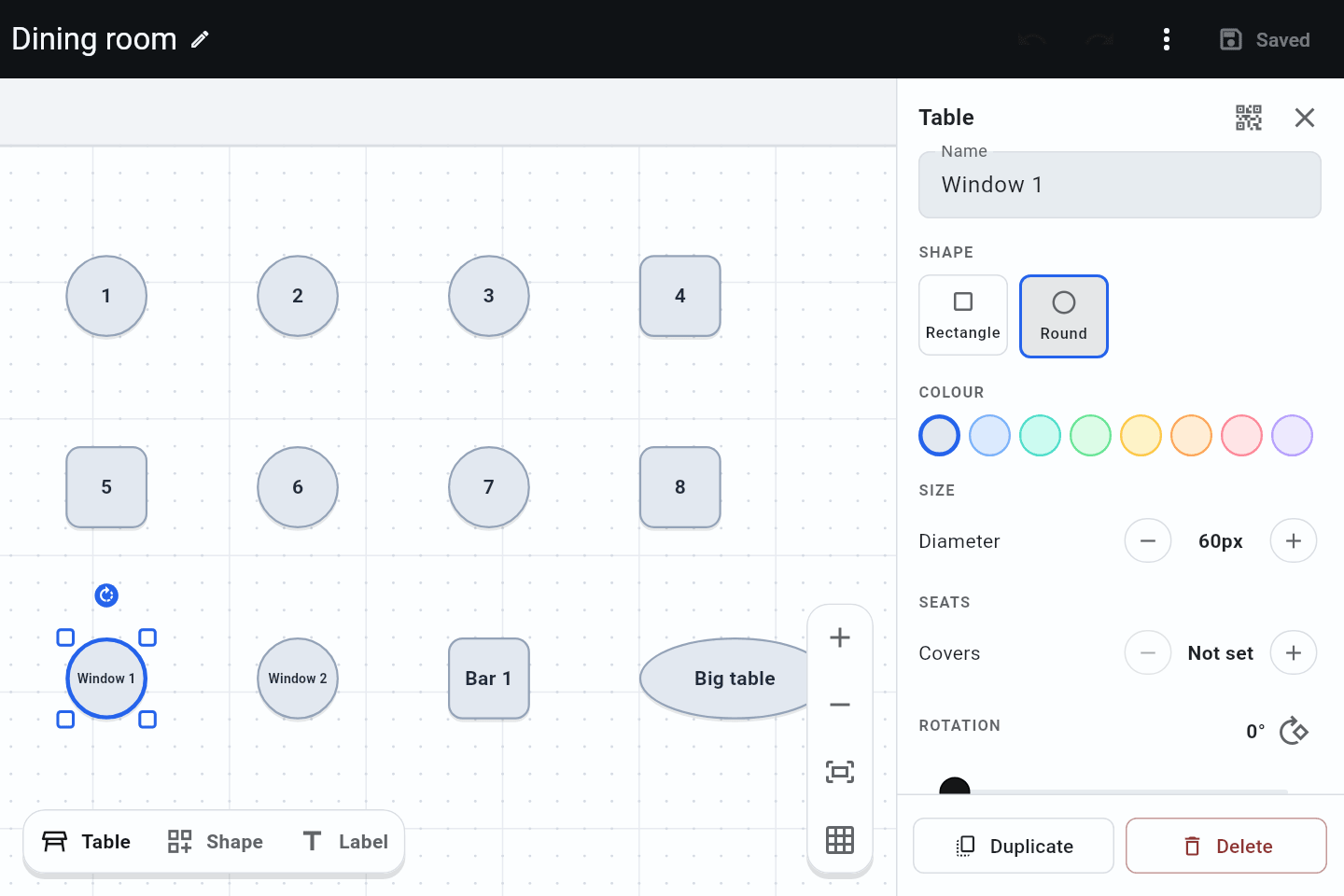
- Tap Table at the bottom to add a table, then drag it into place.
- Tap a table to name it and set its shape, colour, size and seats.
- Tap Save at the top right.
| Button | What it does |
|---|---|
| Table | Adds a table. |
| Shape | Adds a background shape: a wall, the bar, a courtyard. Tables sit on top. |
| Label | Adds a word or two of text, to name an area. |
| ⋮ at the top | Snap to grid, show the grid, rename the floor plan, print table cards. |
Nothing is kept until you tap Save. Leave with changes not saved and you are asked whether to keep editing or throw them away.
A busy shop with more than one room can have a floor plan for each. Staff see them all when they pick a table.
Print table cards
Each card has your logo (if you have added one under menu → Online → Storefront), your shop name, the table's QR code, the table name and Scan to order. There are four cards to an A4 sheet. Cut along the dashed lines and stand each one in a table-card holder.
| To print | Tap |
|---|---|
| Every table, all floor plans | The QR button at the top of Floor plans |
| One floor plan's tables | Open it, then ⋮ → Print table cards |
| One table's code on its own | Open the floor plan, tap the table, then the QR button beside Table |
On a phone or tablet the cards open in the share sheet. Choose Print, or send them to yourself. In a browser they download as a PDF.
The single table's code has Save QR code, for a sticker or a menu you have designed yourself, and Copy link.
Save the floor plan first. A table you have just added has no working code until the plan is saved. The app tells you so if you try.
Good to know
- Renaming a table does not change its code. Printed cards keep working, and customers see the new name. Rename "Window 1" to "Window" and you do not need to reprint.
- Deleting a table kills its code. A customer who scans the old card is told the code is not valid and asked to see your staff. A new table gets a new code, so print a card for it.
- Moving tables around changes nothing for customers. Only the name and the code matter to them.
- What happens when a customer scans a card is on Ordering from the table.
- Once you have a table, Sales → Tables shows the room live: which tables have orders and what they owe. See Tables.