Service hours
Kitchen hours for a kitchen's categories, and nothing else. A customer can browse the whole menu at 3pm but can only add a small plate when the kitchen is open. Coffee, cold drinks, gift vouchers, shelf goods: whatever you leave on Always can be ordered around the clock and waits for you to open.
Where: Online → Ordering → Service hours.
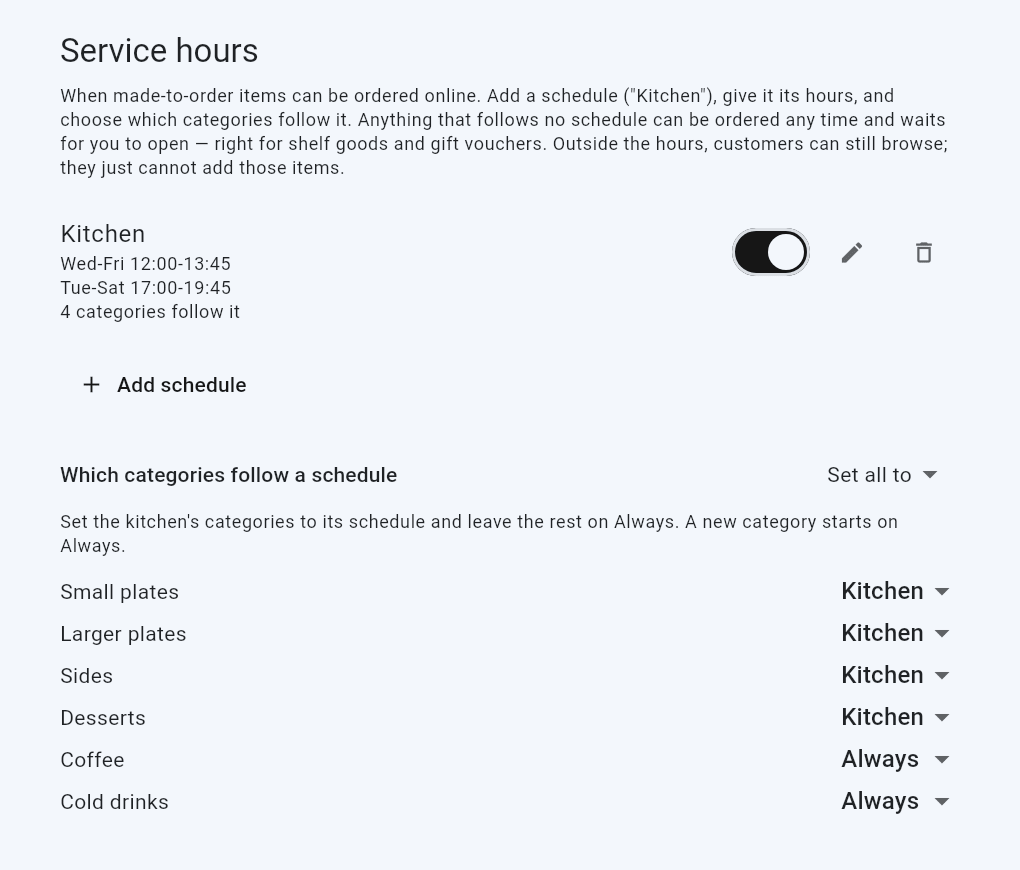
Set up, once
- Add schedule. Name it the way a customer would read it ("Kitchen", "Bar"). It shows up on the storefront as "Kitchen opens 5:00 PM".
- Give it rows. Each row is days + Opens + Last orders. Lunch and dinner are two rows. Tap Add another set of hours for the second one.
- Save. The schedule is live immediately.
- Bind categories. In Which categories follow a schedule, every category is listed with a dropdown: Always or a schedule name. Use Set all to to bind everything to Kitchen in one tap, then put the retail categories back to Always.
A new category starts on Always. If you add a food category later, bind it.
Last orders, not closing time
The end of a row is the last minute an order is accepted. If the kitchen shuts at 2:00 and needs fifteen minutes, set last orders to 1:45. There is no separate grace period.
A Last orders earlier than Opens runs past midnight (5:00 PM to 1:00 AM) and belongs to the day it opened. The editor labels it "(next day)".
Pause vs Taking orders
| Pause (per schedule) | Taking orders (whole store) | |
|---|---|---|
| Use for | Public holiday, sick chef, slammed service | Closed for a week, storefront not ready |
| Effect | That schedule's categories are closed; everything else keeps selling | Nothing can be submitted; the menu stays browsable |
| Timetable | Untouched, resumes when you switch it back on | Untouched |
Pause is the switch on each schedule's row. Taking orders is its own section higher up the screen.
What customers see
- Header strip: each schedule with its state ("Open now", "Opens 5:00 PM", "Kitchen closes in 12 min") and its timetable.
- Closed items stay on the menu, greyed, with an "Opens 5:00 PM" pill in place of the add button. The item page's button says the same.
- Closing soon: inside the last 30 minutes, the header, cart bar, cart and checkout all count down "Kitchen closes in 12 min".
- In the cart past last orders: the affected lines are flagged, checkout is blocked, and one tap removes them. Nothing else in the cart is affected.
- The kitchen closes on the customer's screen at last orders exactly, however long ago they loaded the page.
The server enforces the same rule: an order that reaches it with a closed item is refused, so a stale page or a crafted request cannot get one through.
What is and isn't gated
| Order | Gated? |
|---|---|
| Pickup, dine-in (table QR), store-own delivery | Yes: made now |
| Dated collective delivery run | No: prepared for the run day; the run's own cutoff applies |
| Categories on Always | Never |
Hours note
The free-text Hours note in Storefront details is shown under the timetable and enforces nothing. Use it for what the timetable cannot say: "Closed public holidays".
Good to know
- All times are New Zealand time. There is no timezone setting.
- A schedule that a category still follows cannot be removed. Set those categories to Always or another schedule first.
- Renaming a schedule does not unbind its categories.
- Changes reach the storefront within a minute. A closing already on screen happens on time regardless.