Roster
Next week's shifts on one grid: who is on, which days, and what it adds up to. Print it for the office wall, send it to the staff chat, and everyone sees the same thing at the till when they clock in.
Where: menu → Staff → Roster.
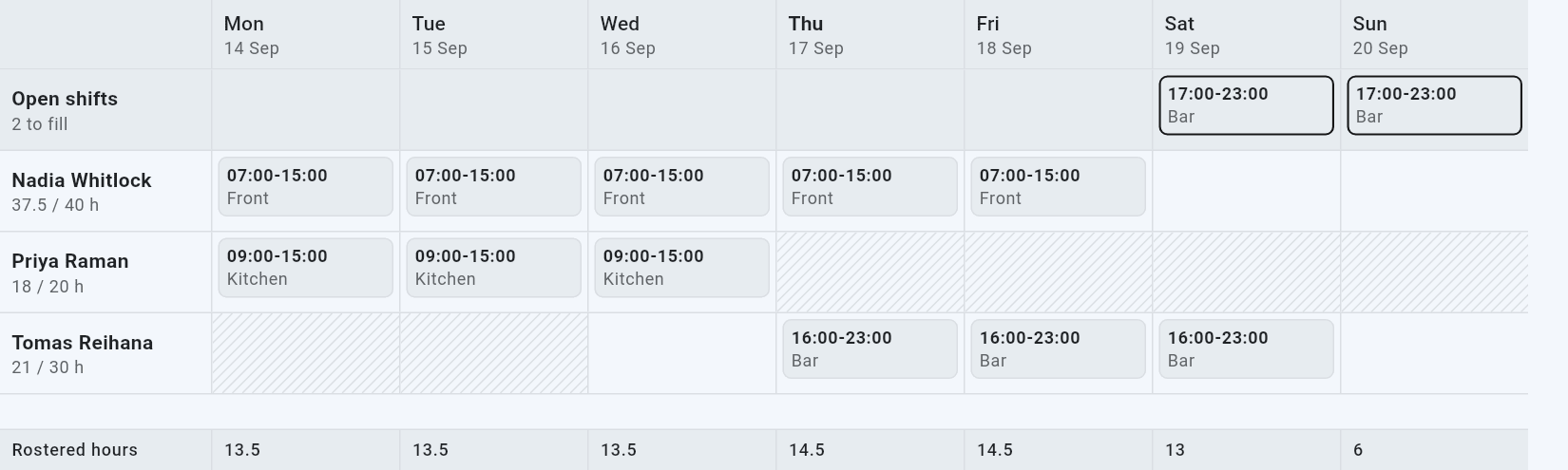
How to read it
People down the side, days across. A person's row foots with their week
total against their limit — 37.5 / 40 h — and turns amber if you go over. A
day column foots with everything rostered on it.
The striped cells are hours that person said they cannot work. You can still roster into one. The roster tells you and lets you, because you know things it does not.
The top row is Open shifts, and it is the one thing on this screen worth learning first. An open shift is work that needs covering with nobody on it yet. Put the shape of your week in there — a Saturday night on the bar, a Sunday opener — and you have said what needs doing without deciding who does it.
Coverage: the same week, by the hour
There are two ways to look at a week, and the control at the top of the screen swaps between them. People is the grid above. Coverage turns it on its side: hours down the left, days across the top, every shift drawn as a bar.
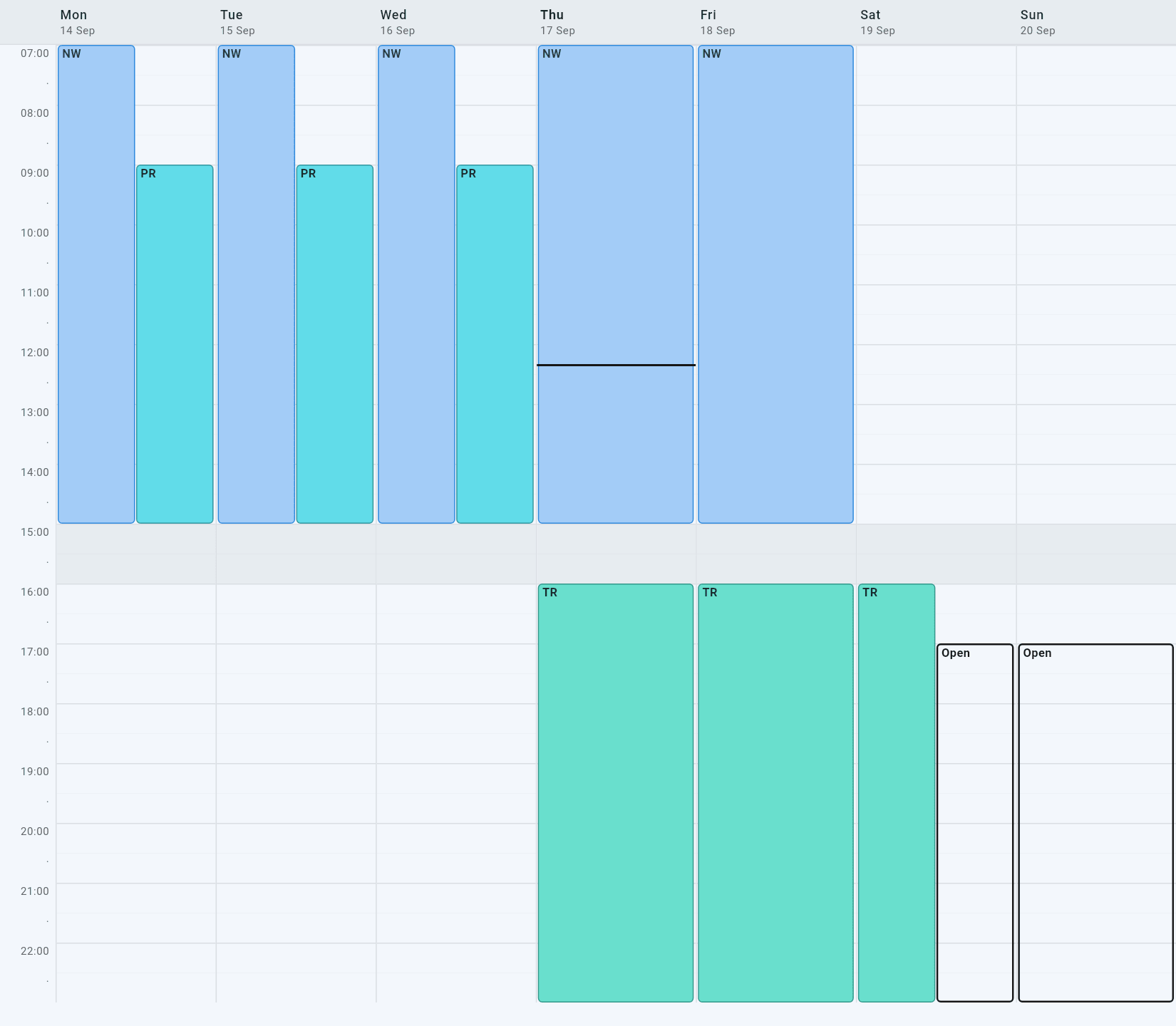
Use People to answer who works when. Use Coverage to answer is anybody on at three on Tuesday — the question the first view makes you work out for yourself by reading seven columns and adding them up.
An open shift is a hole with a shape. In Coverage it is the outlined bar: you can see when it starts, how long it runs and what else is on around it. Tap the open-shift count in the bar above the grid and it brings you straight here, with the first hole on screen.
Everything you can do here, you do through the same shift box. Tap a bar to open that shift. Tap an empty patch of a day to start a new one, with the day and the time you tapped already filled in. Nothing saves until you save it.
Tap an open bar and it asks who can work it. Everyone is on the list, with the fairest choice at the top and a line each saying where they stand: free and how many hours they are on for, already on another shift and which one, not available, or over their weekly limit. Tap a name and they are on it.
Nobody is hidden. The person you want at five on a Saturday is often the one whose hours say no, so a greyed name asks once and then does it. That is the same stance as the rest of the roster: it tells you and lets you, because you know things it does not.
Draw a shift by dragging down a day. Hold your finger on the time it starts and drag to the time it ends, and the outline that follows shows the hours as you go. With a mouse, just drag. Let go and the shift box opens with both times in it. Draw over people who are already on and you get an open shift on top of them, which is how you say a busy stretch needs another pair of hands.
Busy times shades in how busy you have been. Turn on the Busy times switch above the hours. It reads the last four weeks of sales, hour by hour and day by day, and shades each hour orange in three steps against your own busiest hour: quiet, busy and very busy. The key beside the switch shows which is which, so a quiet shop is not painted as a busy one.
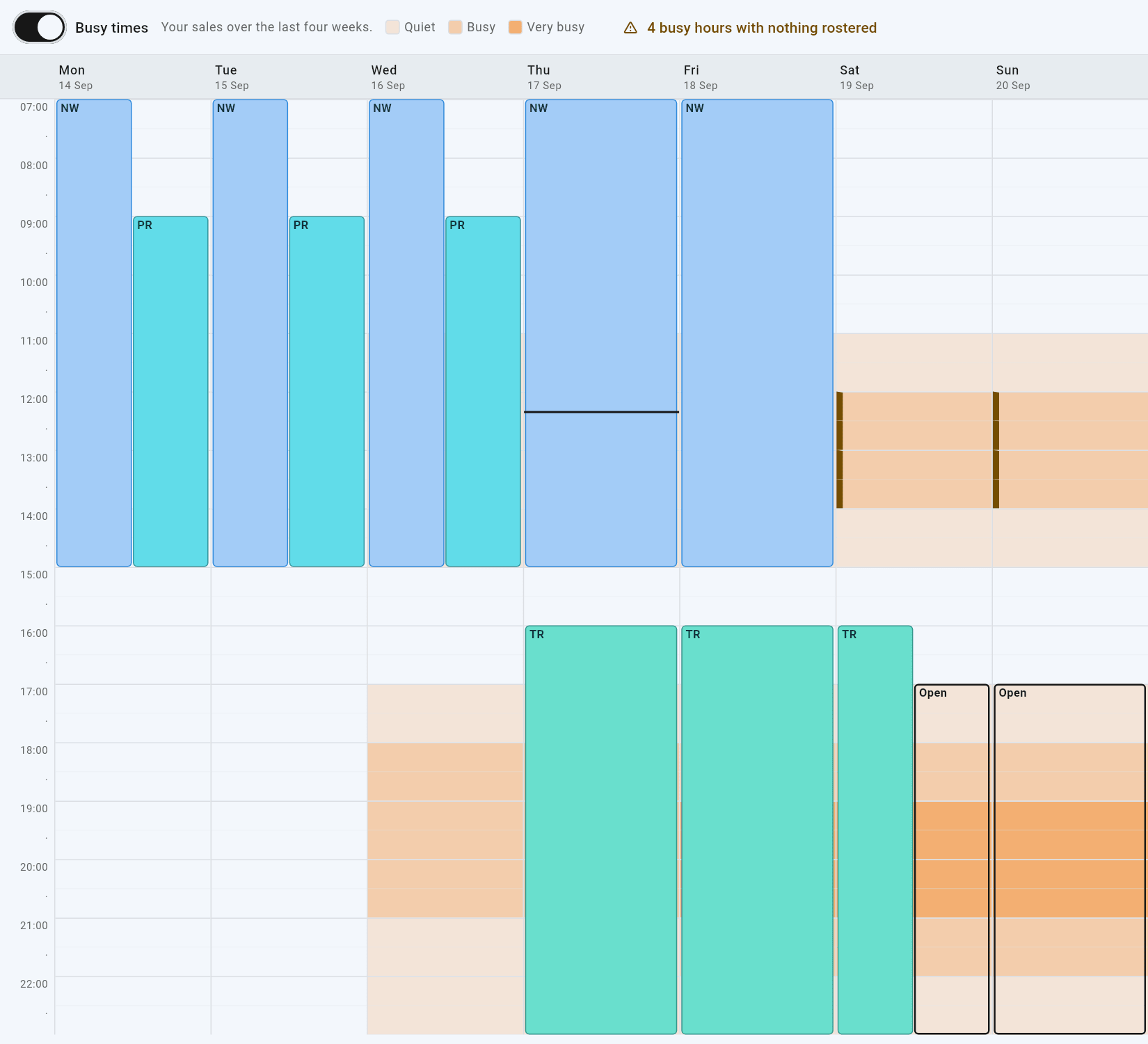
A busy hour with no shift in it gets an orange edge down its left side, and the line beside the switch counts them: "4 busy hours with nothing rostered". Tap it to jump to the first one. An open shift already counts as rostered here, since the open-shift count already shows it.
It is a forecast, so it only shows on this week and later. For a week that has already happened, use the clock icon on the People view instead, which shows what people actually worked.
The hours it shows are the hours you roster. Draw a shift that starts at six and the grid makes room for six; the line across today's column is the time right now.
Your first roster
- Tap any empty cell. The day and the person are already filled in from the cell you tapped. Set the times, pick a role, save.
- Use "Same again on". On a new shift there is a row of day chips under the date. Set Monday up, tick Tue, Wed, Thu and Fri, and one save gives you the week. Each day is its own shift afterwards, so you can change Thursday without touching the rest.
- Publish when the week looks right.
Every edit saves the moment you make it — there is no Save button for the grid, and nothing is waiting to be lost. Publish is the separate step, and it is the one that makes the week real for your staff.
Every week after the first
Copy last week is the button. Most weeks are last week with something moved. It copies every shift onto the matching day of the week you are looking at, as a draft, and you fix up the differences.
If the week already has shifts in it, copying adds to them rather than replacing them, so it asks first.
Auto-fill
Auto-fill puts people into the open shifts. It will not touch a shift that already has a name on it — so if nothing happens, check whether you have any open shifts to fill.
It respects three things, in this order: whether they are available, whether they have the role, and whether it would take them over their weekly hours. It spreads the week so the same person is not given everything. When it cannot fill a shift without breaking one of those, it leaves it open and tells you why rather than picking someone anyway.
It never publishes. What it does is a draft until you say so.
Draft with AI
Draft with AI does the first pass for you. It reads how busy the shop has actually been by weekday and hour over the last four weeks, and how many people were clocked on at those times. It starts from the way you already staff the week, adds people where you have been stretched, adds the open shifts the week looks like it needs, and then fills them the same way Auto-fill does. It will not put a shift at a time nobody has been clocked on, so a late sale rung up after closing does not turn into an evening shift.
Then it tells you what it did and what it could not do — a Saturday it left open because nobody available carries the role, say.
It cannot publish, and it never assigns anybody itself. It decides how many people a stretch needs; who works it is still availability, roles and hours. Everything it adds is a draft for you to change.
It needs some trading history to read. A shop in its first fortnight has no curve to work from, and it will say so rather than guess.
Publish
One button. It makes every unpublished shift in the week visible to staff, and it says how many it published.
Until you publish, the banner along the top counts what is waiting. After you publish it says so. You can add a shift to a week that is already out and publish just that one — publishing twice does nothing the second time.
Print and share
Share or print turns the week into a one-page PDF and hands it to your phone or tablet's usual share sheet — the staff group chat, an email, or Print for the A4 copy on the office wall. In a browser it downloads the file instead.
The sheet is the same shape as the screen, so nobody has to re-learn it on paper. If anything in the week is still unpublished, the page is stamped DRAFT, so a half-finished week on the wall cannot be mistaken for the real one.
Getting out of the print window
Once you choose Print, the window that opens — the one asking whether to print to a printer or save a PDF — belongs to your device, not to Posuku. We cannot put a Close button on it.
- Android phone or tablet: the Back button or back swipe closes it.
- A browser: Cancel, or the Escape key.
If you only want the file and not a printer, pick Share and send it to yourself, or use the app in a browser, where it downloads straight away without any print window at all.
What was actually worked
The timer button in the top corner overlays what people actually clocked against what you rostered.
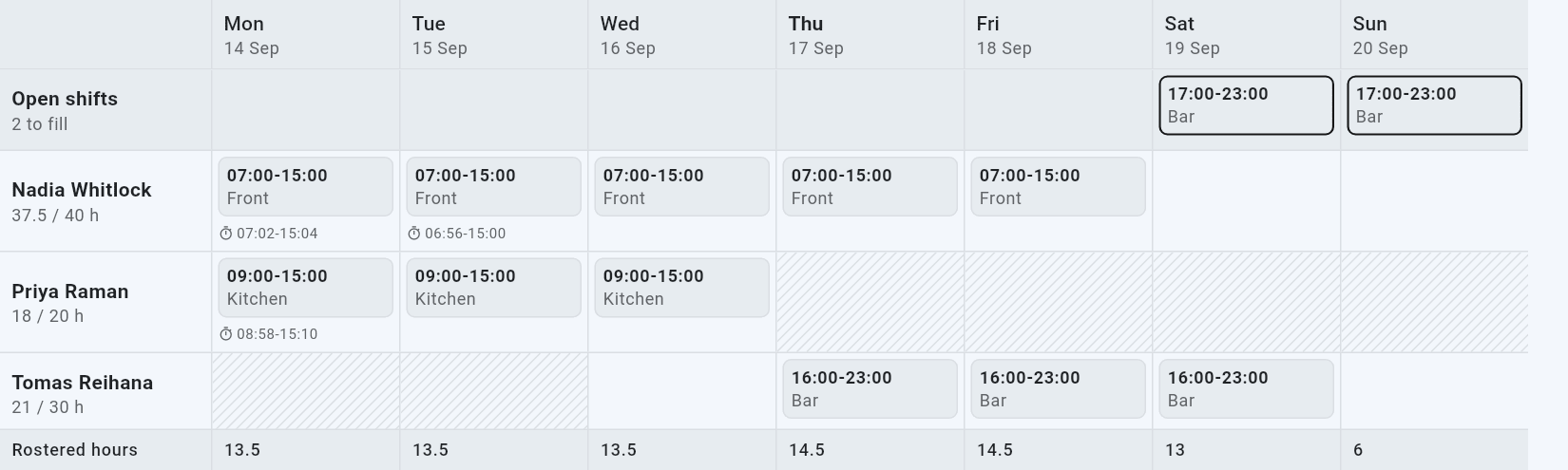
Clock-ins are shown on the day, not against a particular shift. Somebody who worked a split day has two shifts and may have clocked once; somebody who came in to cover has a clock-in and no shift at all, and that gap is exactly what this is for.
It is off by default because it has to read every person's timesheet, which is slower than the roster itself. Turn it on when you are reviewing a week that has happened.
What staff see
Nothing until you publish. After that, when they tap to clock in they see their shift today, who else is on, and their next shift if today is a day off.
Everyone sees everyone, which is what lets your team sort swaps and cover between themselves.
Clocking in and out has nothing to do with the roster. Anybody can clock in at any time, rostered or not — somebody called in to cover is exactly who needs to, and the app will never argue with them about it. The roster is shown beside the button as information, never as a condition.
On a phone
Below about a tablet's width the grid becomes one day at a time, with the days as chips along the top. Same shifts, same edits.
Good to know
| Changing a shift's day | Open the shift and change the date. It moves; it does not leave a copy behind. |
| The same shift twice in a day | Long-press a shift card to duplicate it. |
| Deleting | Open the shift, then the bin. It asks first. |
| A shift past midnight | Set the end earlier than the start. It belongs to the day it began, and the editor labels it "(next day)". In Coverage it shows on both days: the bar runs to the bottom of the day it started, and the next day carries the tail at the top. |
| A busy stretch, squashed thin | When a lot of people overlap, the bars get too narrow to tap one by one. Tapping any of them lists the lot, and you pick from the list. |
| Drawing over someone | A drag never moves anybody. It always makes a new open shift, on top of whoever is already on. |
| The two views | Same week, same shifts. Nothing is a draft in one view and published in the other, and there is nothing you can do in one that you cannot do in the other. |
| Breaks | An unpaid break comes off the hours totals, not off the times on the card. |
| Someone who is never rostered | Tap the people icon in the top corner and untick them. Each tick saves straight away. They still sign in and clock in as usual. If they already have a shift that week, their row stays until it is gone. |
| Someone who has left | Turn them off under Staff. They keep their history and get no roster row. |
Not yet
Shift swaps requested by staff, notifications when you publish, and leave requests are not here. Sharing the week to the group chat is the answer for now, and for a shop of this size it may stay the answer.