Tables
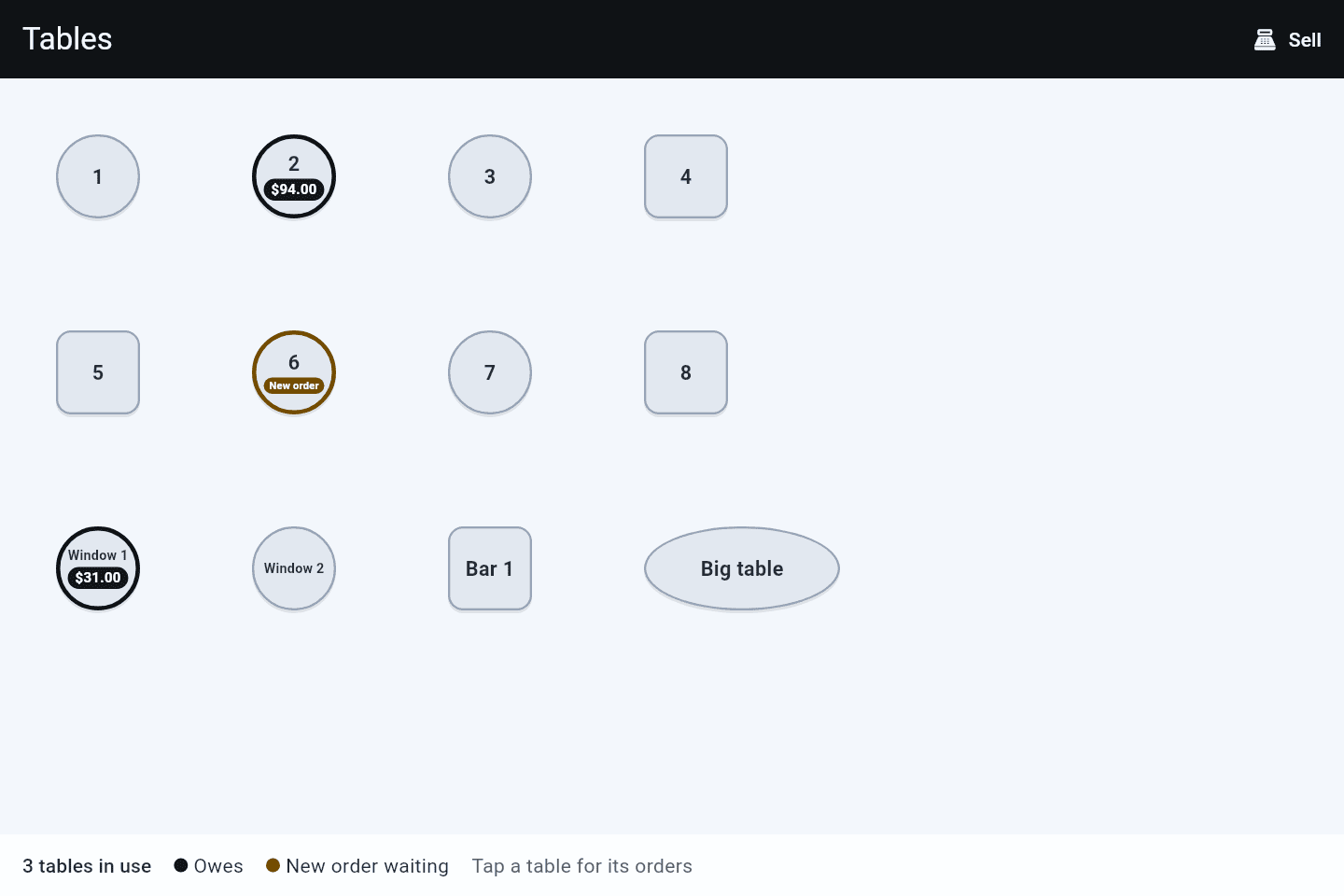
Your floor plan, live. See at a glance which tables have orders, what each one owes, and which have an order from their QR code waiting for you. Tap a table to see its orders, take its bill, or start a new order there.
Where: menu → Sales → Tables, or the table button in the bar at the top of Sell. Both appear only once you have drawn a table under Sales → Setup → Tables. Sell, at the top of Tables, takes you back to the till for a sale at no table.
Video: Tables in 2 minutes
With sound and captions: seat a table, send the drinks and then the food, take a dish off, print a docket again, and pay. All the videos are on Videos.
Reading the plan
| A table shows | Means |
|---|---|
| Drawn as usual | Free: no open orders today |
| An amount, with a bold edge | It has orders that still owe this much |
| New order, edged in amber | An order from its QR code is waiting for you to accept it |
A table frees itself as soon as everything on it is paid. There is nothing to clear by hand.
The plan opens with every table on screen, and stays that way when you turn the tablet. Pinch to zoom in on a busy corner. Once you have moved the plan, a button in the bottom corner puts every table back on screen.
Tap a table
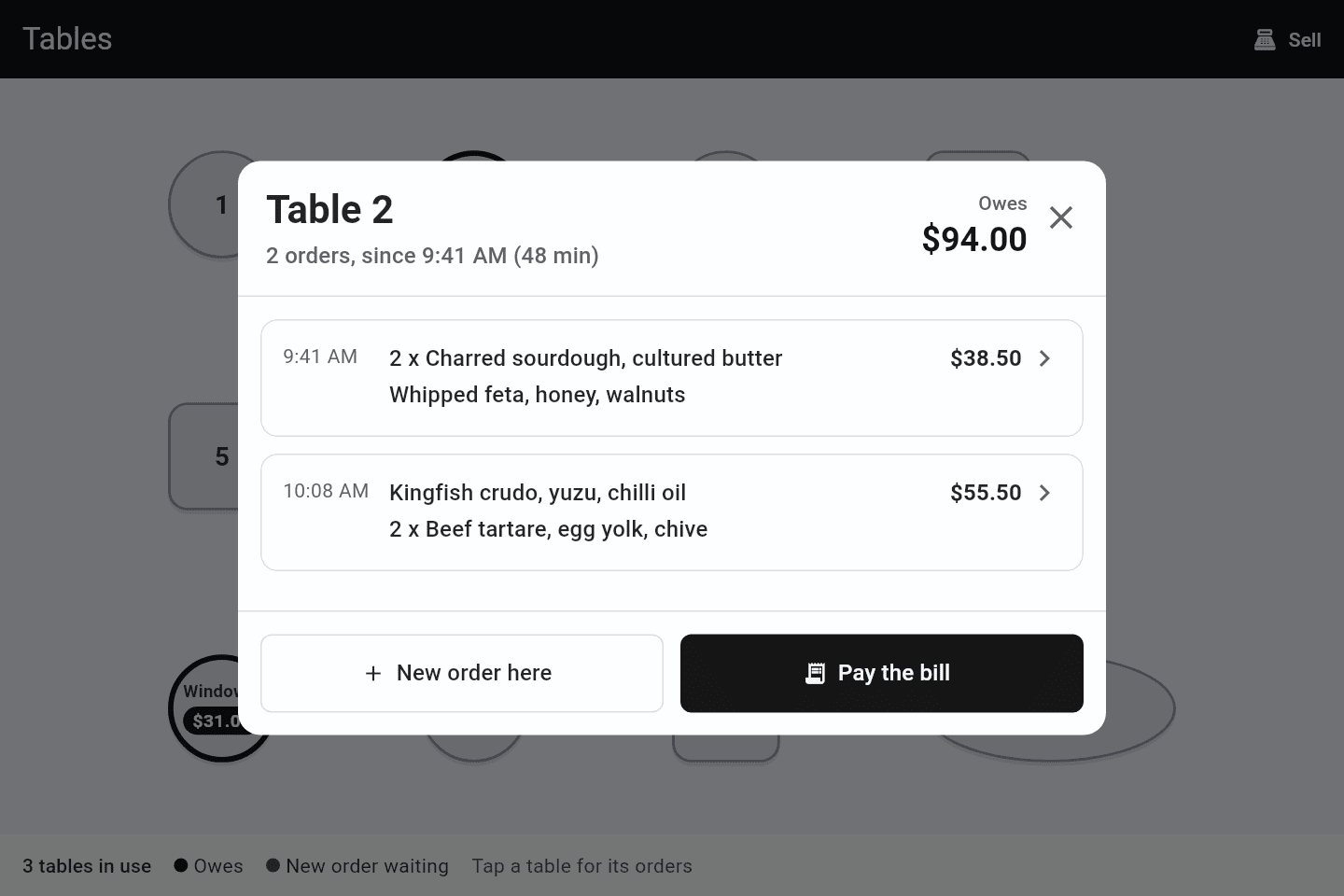
The table opens in the middle of the screen: what it owes, how long it has been going, and each of its orders with the dishes on it. Tap anywhere on an order to open it on Sell, where you can add to it, Send it, move it to another table, or split it by item.
| You see | What it does |
|---|---|
| An order edged in amber | A QR order waiting to be accepted. Tap it to accept it in Orders |
| An order with an amount | It still owes this much. Tap it to open it on Sell |
| Paid online | Paid from the QR code already; nothing to take |
| Pay the bill | Opens the table's order on the payment screen, as Pay does on Sell. A table with several orders pays them one at a time. See Pay a table's bill |
| Add to order | On a table that has an order: opens it on Sell to add more |
| New order here | On a free table: starts its order on Sell, already at this table |
One order per table
A table keeps one order for the whole meal: drinks, then food, then dessert all go on it, and the table pays one bill. Add to order opens it.
Picking a table on Sell that already has an order asks first: Add to table 2's order puts what you rang up onto it, so the table still has one bill. Keep separate starts a second order there instead.
When a table does have more than one order (a QR order beside the till's, or two tills at once), the order on Sell shows Table 2 has another order, with what it owes. Tap it to open that order. Each order is paid on its own.
Send an order to the kitchen
An order on a table has Send beside Pay. Send prints the dockets and keeps the order open on its table, to pay later. You go back to where you started: Tables if you came from there, otherwise a new sale.
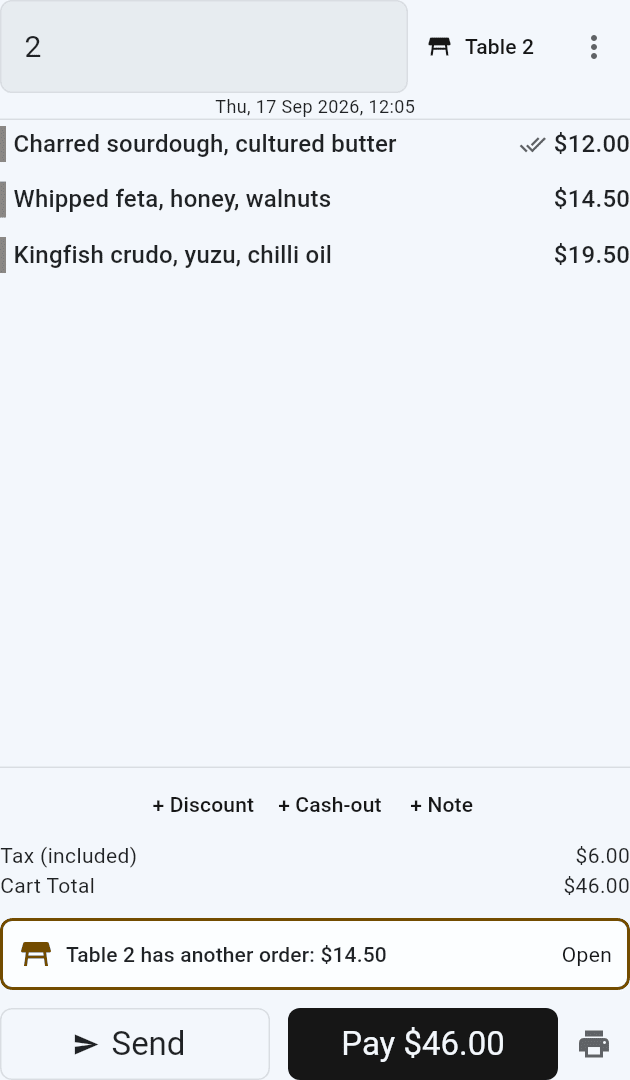
- Only what is new prints. Add food to an order whose drinks were already sent, press Send, and only the food prints. A line that has been sent shows a tick.
- Changing a sent line is fine. Take it off, or make it fewer, and the next Send prints it under CANCEL. Change its choices (say, no onions) and it prints under CANCEL as it was, and again as it is now.
- The kitchen lost a docket: on the order, tap the printer button, then Print docket again. It prints everything sent so far, marked COPY, so nobody makes it twice.
- A printer did not print: you are told which one, and the order stays on screen. Fix the printer and press Send again: only what did not print goes.
A till for table service
On the till used for table service, open Tables, tap ⋮ at the top, and tick opens on Tables. That till then starts on Tables and goes back there after every Send and every payment. The table button at the top of Sell then says Tables. Other tills are not affected.
Good to know
- Wrong table, or no table at all? Tap the table name at the top of the order to move it to another table. To take it off its table, tap ⋮ on the order, then Remove from table. The order keeps everything else. Orders from a table's QR code keep their table.
- The table ties the orders together. One order kept open for the whole table, or a separate order for each person who comes to the counter: either way they all show on the table and all go on its bill.
- Today's orders only. An order from yesterday that was never paid shows in Orders, not here.
- Moving an order to another table: open it, tap the table button at the top of the order, and pick the new table.
- An order only shows on a table when it was put on one, from the table picker or the table's QR code. A table number typed into the order name does not link it.