Registers and printers
Your registers, your printers, and what each register prints on which printer, in one place.
Where: menu → Sales → Setup → Registers and printers.
This page is new and being tried out. The first time you open it, tap Switch to it. Your printers keep printing as they do now. Once you switch, printing follows this page, and the old Printers screen is no longer in the menu.
Before you switch, update the Posuku app on every till. A till that is not updated keeps printing the old way and does not see changes made here.
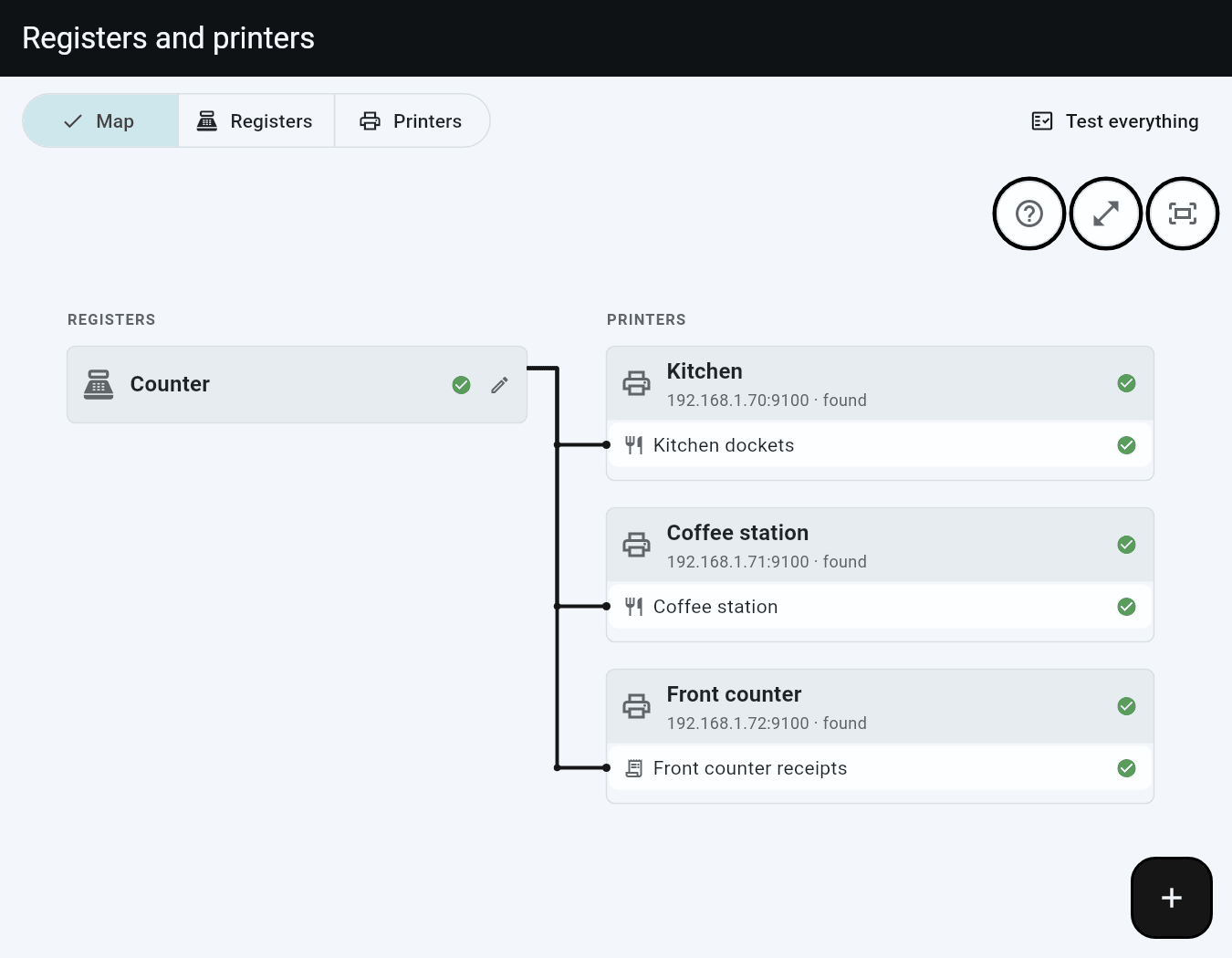
How it is laid out
The page opens on the map. Along the top:
- Map, Registers and Printers: three views of the same setup.
- The light bulb, when something looks wrong (see Suggestions).
- Test everything (Test on a phone).
The round + at the bottom right adds anything: a Register, a Printer, a Docket or Receipts. It shows the view it belongs to, opens its window, and after you save, what you added is in view.
On each register and printer, What it prints lists its receipts and dockets, one short line each. The same receipts and dockets show on both views: a register's line says which printer it prints on ("On Kitchen"), a printer's line says which registers send it ("From Counter, Bar"). Tap a line to change what it prints, the printer, and which registers send it.
Registers
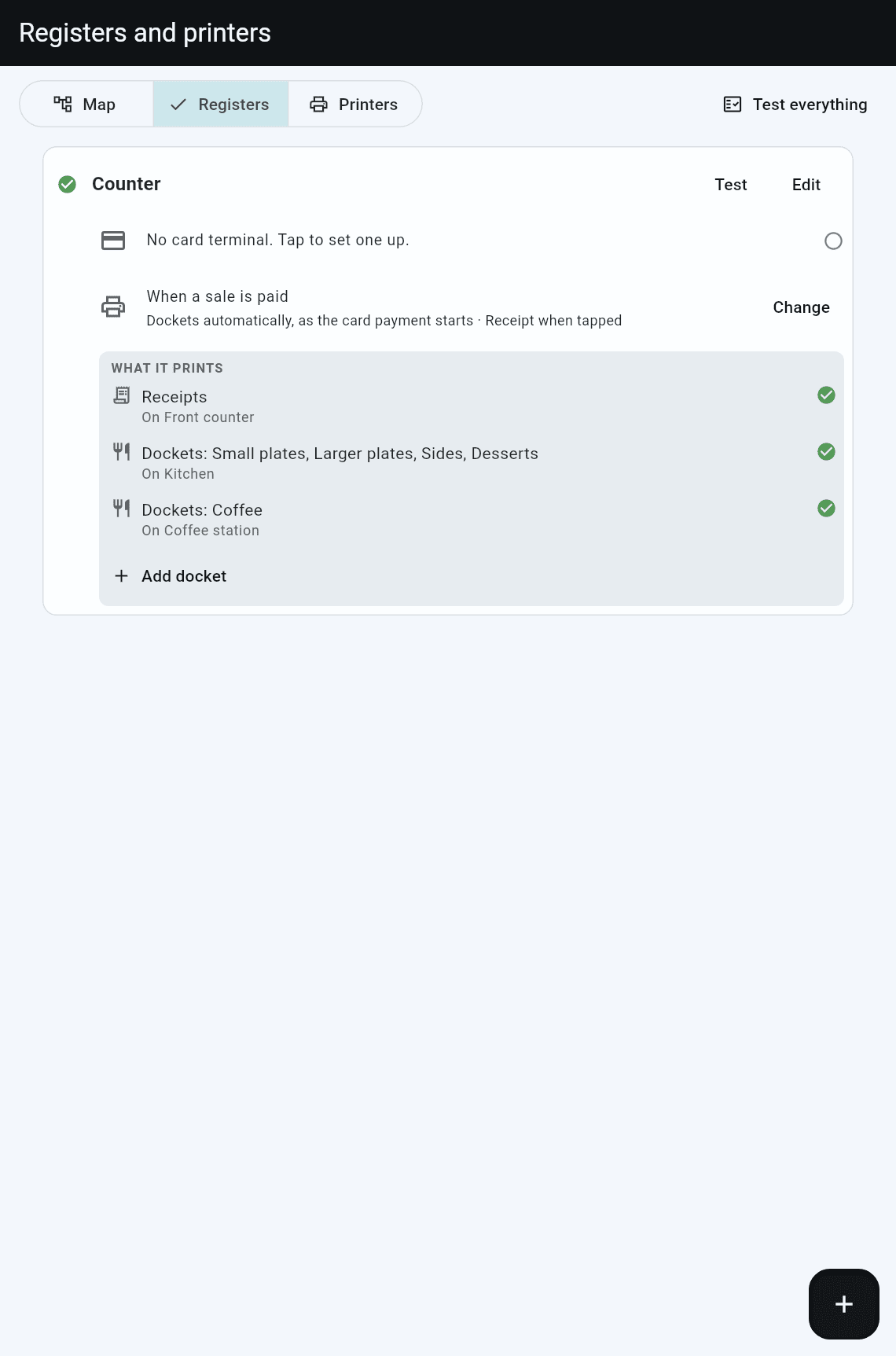
Each register's card shows:
- Card terminal: the machine that takes cards. Tap it to see how it stands, check it again, or set one up.
- When a sale is paid: what prints automatically there, in a line, and Change (see Print automatically when a sale is paid).
- What it prints: its receipts and dockets, each with the printer it prints on and a mark for how it stands. No receipts means none yet: tap it to choose a printer.
- Add docket, to send orders from this register to another printer.
Beside the register's name: its mark, Test (see Test a register) and Edit. Edit opens a window to rename it, change what prints when a sale is paid, switch this device to it, switch it on or off, or delete it. On the map, the pencil on a register opens the same window. The register this device sells as is marked This device. Switching asks first, saying what changes.
Printers
Tap Printers for every printer in the shop in one list. Any register can print on any of them.
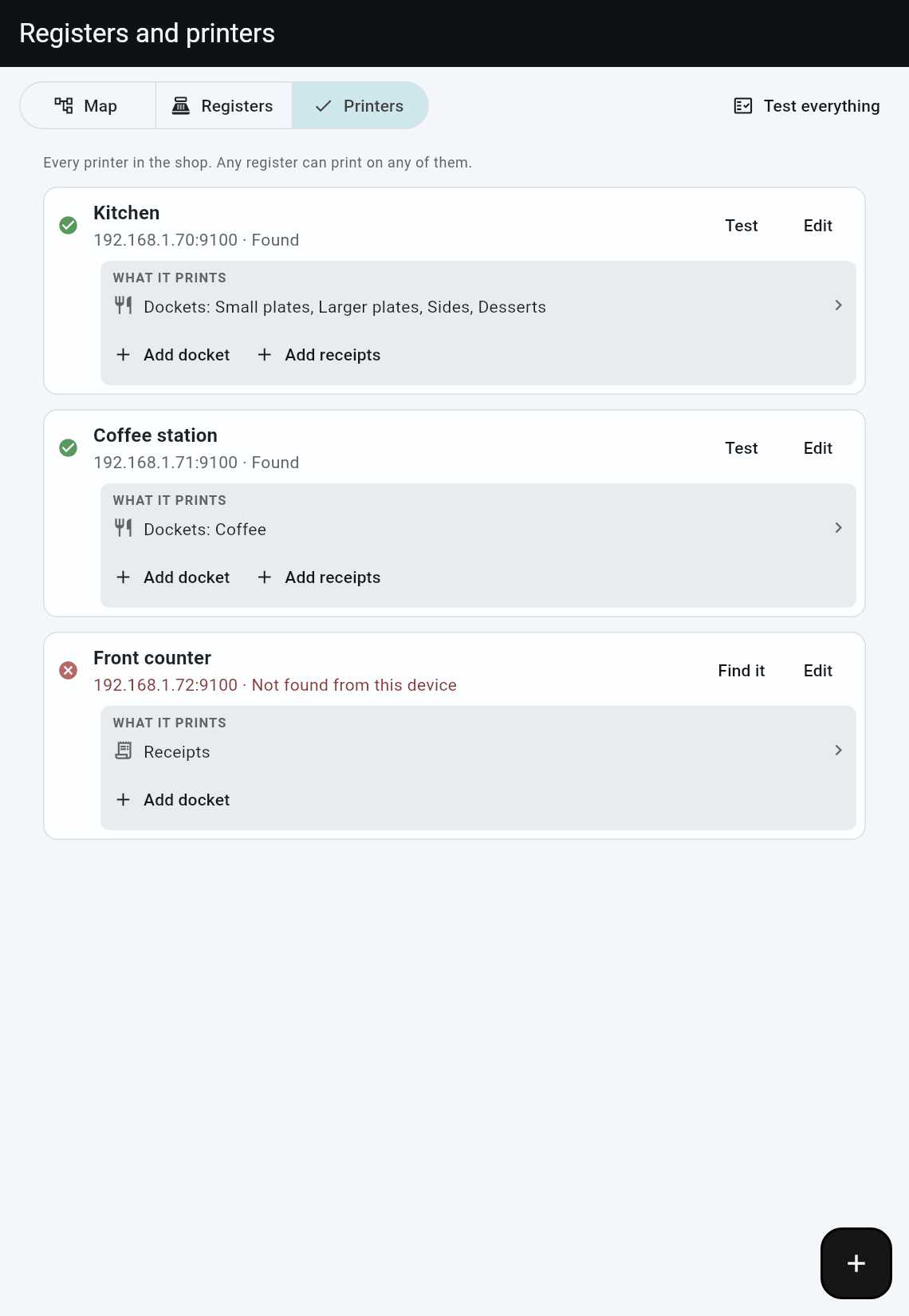
- Each printer shows whether this device reaches it, with Test and Edit (name, address, paper; Remove is in there too).
- Test first says what will print and what to look for, then prints one slip: the printer's name in large letters, then what it prints and which registers send it ("DOCKETS: Pizzas, Sides, from Counter, Bar"). Test each printer, walk round, and check each slip at a glance. A browser cannot reach printers, so there Test is greyed.
- A printer this device cannot reach shows red, with Find it in place of Test (see When a printer is not found).
- Add docket adds another docket to the printer. Add receipts shows on a printer with none yet. Picking a register for receipts takes it off any other receipt printer: each register prints its receipts in one place.
Name each printer for where it sits ("Kitchen Printer"). Receipts and dockets need no name: the printer says where, and the line says what. A docket can have a Heading on the slip, printed at the top, to tell it apart from another docket on the same printer ("Ice creams").
If the kitchen keeps dockets in a holder that covers the top of the paper, open the docket, then Wording on the docket, and choose Space at the top. The docket then starts with that many blank lines, so nothing important is hidden. Each line uses a little paper, so choose as few as clear the holder. Print a test to check.
Find printers
Tap +, then Printer. Posuku searches the network this device is on for printers, and shows what it finds as it goes, with how far it has got. It can take up to a minute.
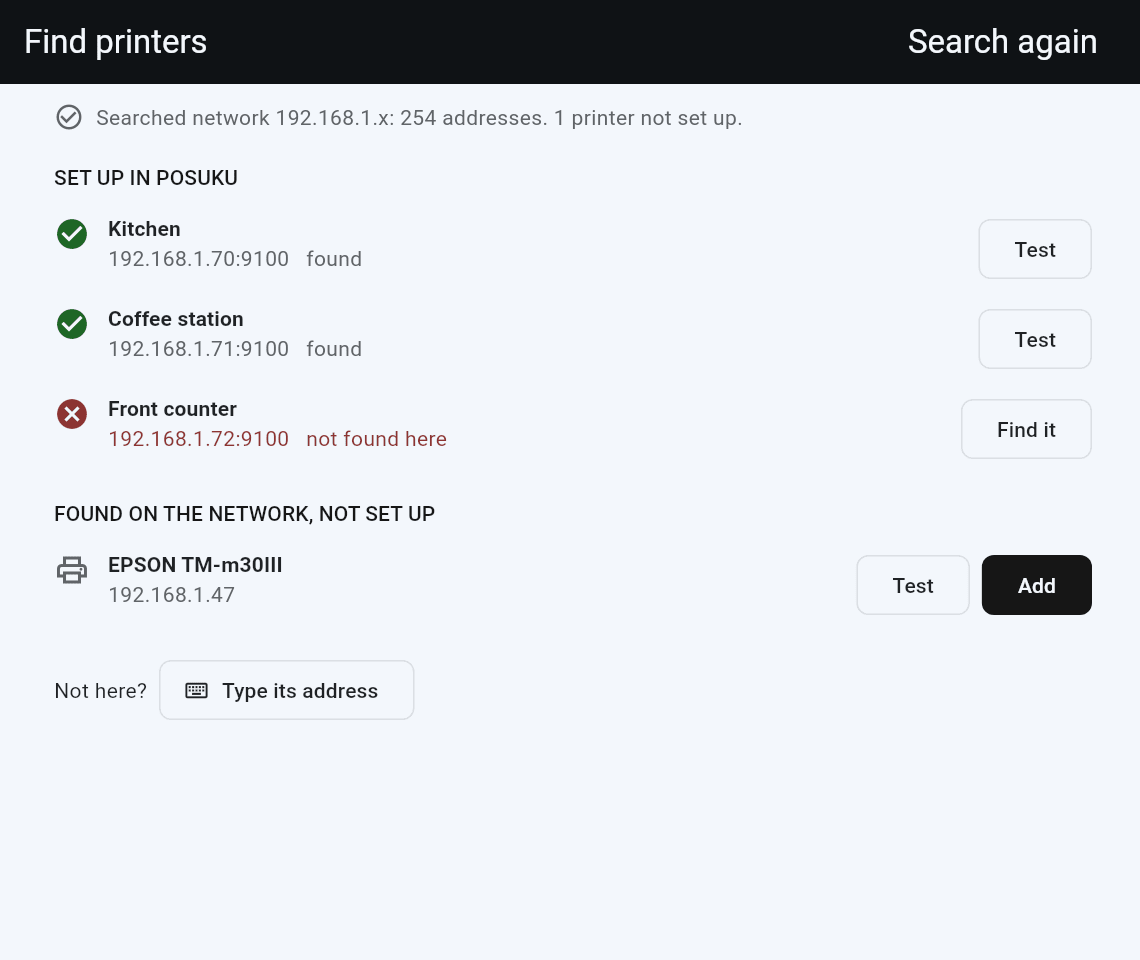
- Set up in Posuku: your printers, each found or not found here.
- Found on the network, not set up: printers that answered and are not in Posuku yet. Tap Test: a slip saying "Not set up in Posuku yet" comes out of that printer, so you know which one it is. Then tap Add and name it.
- A printer already set up is never offered again.
- Not in the list? Tap Type its address.
- Search again at the top runs the search again.
A browser cannot search the network, so there you can only type the address.
Set up a new shop
- Switch the printers on. Tap +, then Printer, and add each one that is found, named for where it sits ("Kitchen Printer"). No printer yet? Tap Type its address and leave the address empty.
- On Registers, tap your register's card terminal line to set it up.
- Tap No receipts and choose the printer.
- Tap +, then Docket, to send orders to the kitchen or bar: choose its printer, the registers that send it, and its categories.
Most shops have one register. With more, add each one and do steps 2 to 4 for it; printers are shared, so pick the same one where they print on the same printer.
The marks:
- A green tick: working.
- Orange: worth a look, for example a docket that prints everything.
- A red cross: not working, for example a printer this device cannot reach or a card terminal that is off.
- An empty ring: none set up, or it cannot be checked from here.
- A spinner: still checking.
A register's mark sums up its card terminal, its suggestions and its printers.
When two registers share one card terminal, it says which. Checking it again from one checks it for both.
Two dockets can share a printer. At Little Kite, a Coffee docket and a Cold drinks docket could both come out at the coffee station, as separate slips.
The cash drawer that opens is the one plugged into the register's receipt printer. When two registers share a receipt printer, its drawer opens for cash sales at both, and the receipt line says so. That is often what you want (one drawer, cash paid at one counter), so it is a note, not a suggestion.
Open the receipt, then Logo and wording, to choose what the top and bottom of the receipt say. A preview of the paper shows as you type.
- Logo: tap Add a logo and pick a picture. It prints in the middle at the top. Receipt printers print only black, so the window shows it in black and white, as it will print. Pick a simple picture with strong lines, then print a test: printers differ.
- Name at the top: left empty, your shop name prints.
- Under the name: your address, phone or email, one per line. Blank lines print as blank lines.
- GST number: once filled in, the receipt prints as a tax invoice with your GST number, on paper and on emailed receipts. Leave it empty if you are not registered for GST. If you typed your GST number under the name before, delete that line, or it will print twice.
- At the bottom: a thank you, or your returns policy.
- What the QR code opens: This order, so staff can scan a receipt to reopen the order, or Your own link.
Print automatically when a sale is paid
Each register decides what prints automatically when a sale is paid there, and what staff print by tapping a button. Its card says it in a line under When a sale is paid, such as "Dockets automatically, as the card payment starts · Receipt when tapped". Tap Change:
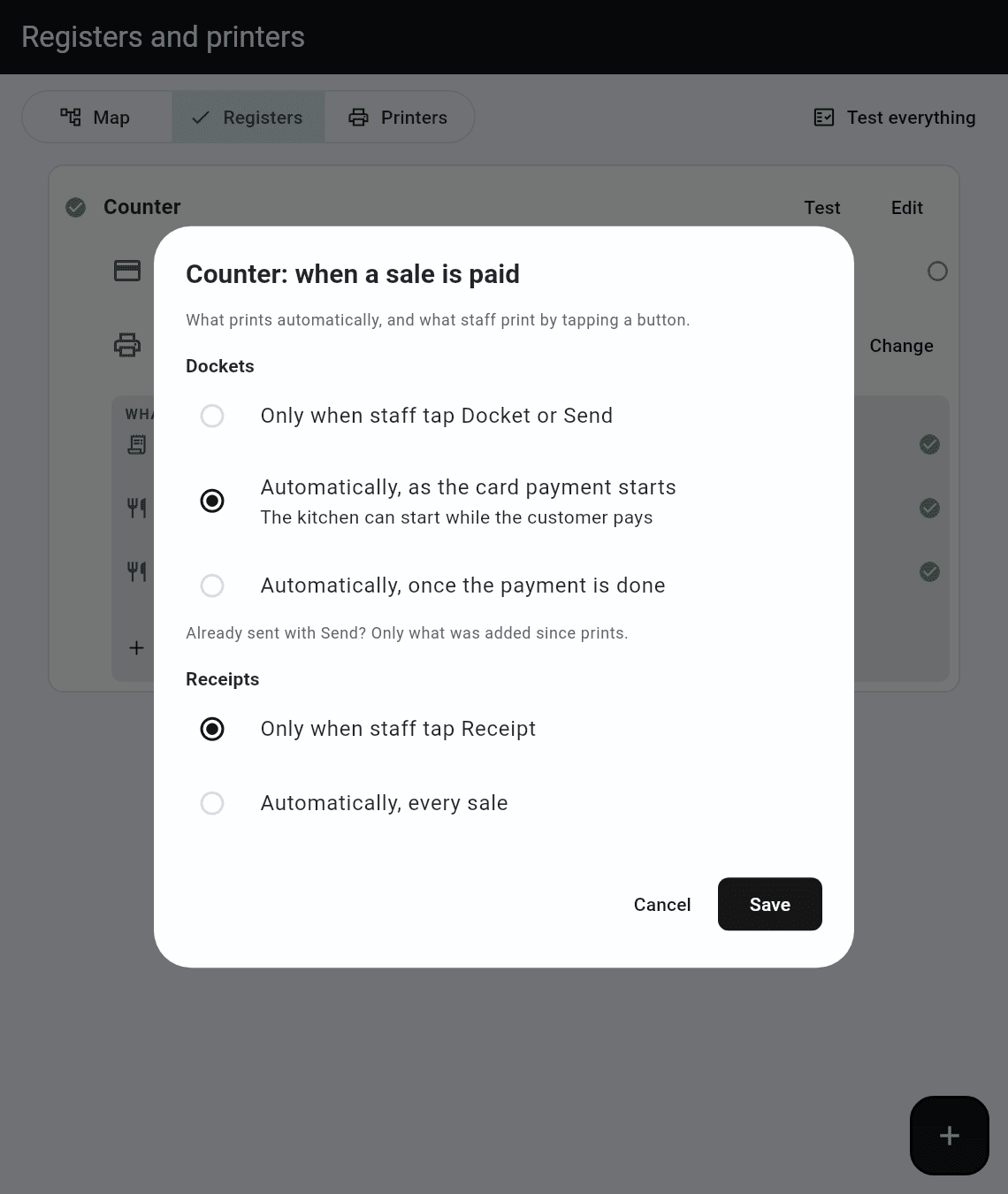
Dockets
- Only when staff tap Docket or Send. For orders paid later, such as a restaurant with tables.
- Automatically, as the card payment starts. The kitchen can start while the customer pays. Most cafes use this. Cash sales print once paid.
- Automatically, once the payment is done. Nothing reaches the kitchen until the payment has gone through.
An order already sent with Send prints only what was added since, so paying the bill does not print it a second time.
Receipts
- Only when staff tap Receipt. Most cafes and restaurants use this.
- Automatically, every sale. Suits a shop counter where most customers want one.
The cash drawer opens for cash sales either way.
With more than one register, Same for every register gives them all the same answer at once. Untick it to set this register on its own, such as a coffee bar that prints dockets automatically beside a restaurant that sends them with Send.
Map
The page opens on the map: the same setup as a wiring diagram. Card terminals on the left, registers next, printers down the right with each receipt and docket that lands on them, and a wire from each register to what it prints. Each column is named at its top. Two registers on one card terminal (one taking orders, the other orders and payments) are both wired to it. A receipt or docket that every register sends to hangs off the bar between registers and printers.
- It opens with one register lit up (the one this device sells as), and what it prints traced.
- Tap a register: its card opens in a window, the same as on Registers, and what it prints is traced on the map.
- Tap a card terminal or a printer box: a window opens with how it stands and what to do next.
- A dashed printer is not connected yet. A red one is one this device cannot reach.
- Each box has the same mark as the lists.
- Drag to move; pinch or scroll to zoom.
- The round buttons at the top right: ? explains the map, the arrows show it full screen, and the last one shows the whole map at once. Full screen has Close at the top left.
Suggestions
When something looks wrong, a light bulb with a count shows along the top (and on the full-screen map). Tap it for what, register by register, each with a Fix button:
| It says | What Fix does |
|---|---|
| No receipt printer | Pick the printer at that register |
| Every receipt prints 2 times | Pick the one printer it should use |
| A docket has no printer | Opens the docket to pick its printer |
| A printer is not connected yet | Opens the printer to add its address |
| A docket prints everything on the order | Opens the docket to pick its categories. Usually one set up before the others |
Test everything
Tap Test everything at the top of the page to test the whole shop in one go, from the device you are holding. It first says what it will do and which printers it will print on; nothing happens until you tap the button to go ahead. It tests:
- each register's setup and card terminal
- each printer once. Those that print receipts or dockets are sent one test slip, listing everything that printer prints. A label printer, or one nothing prints on yet, is only checked that it answers.
- the network, searched once
The result at the top says whether everything works, what is wrong, or that it cannot tell from here. This is the one to run first when nothing prints, or when Posuku support asks: tap Copy and paste it into an email. It is kept in your audit history as well.
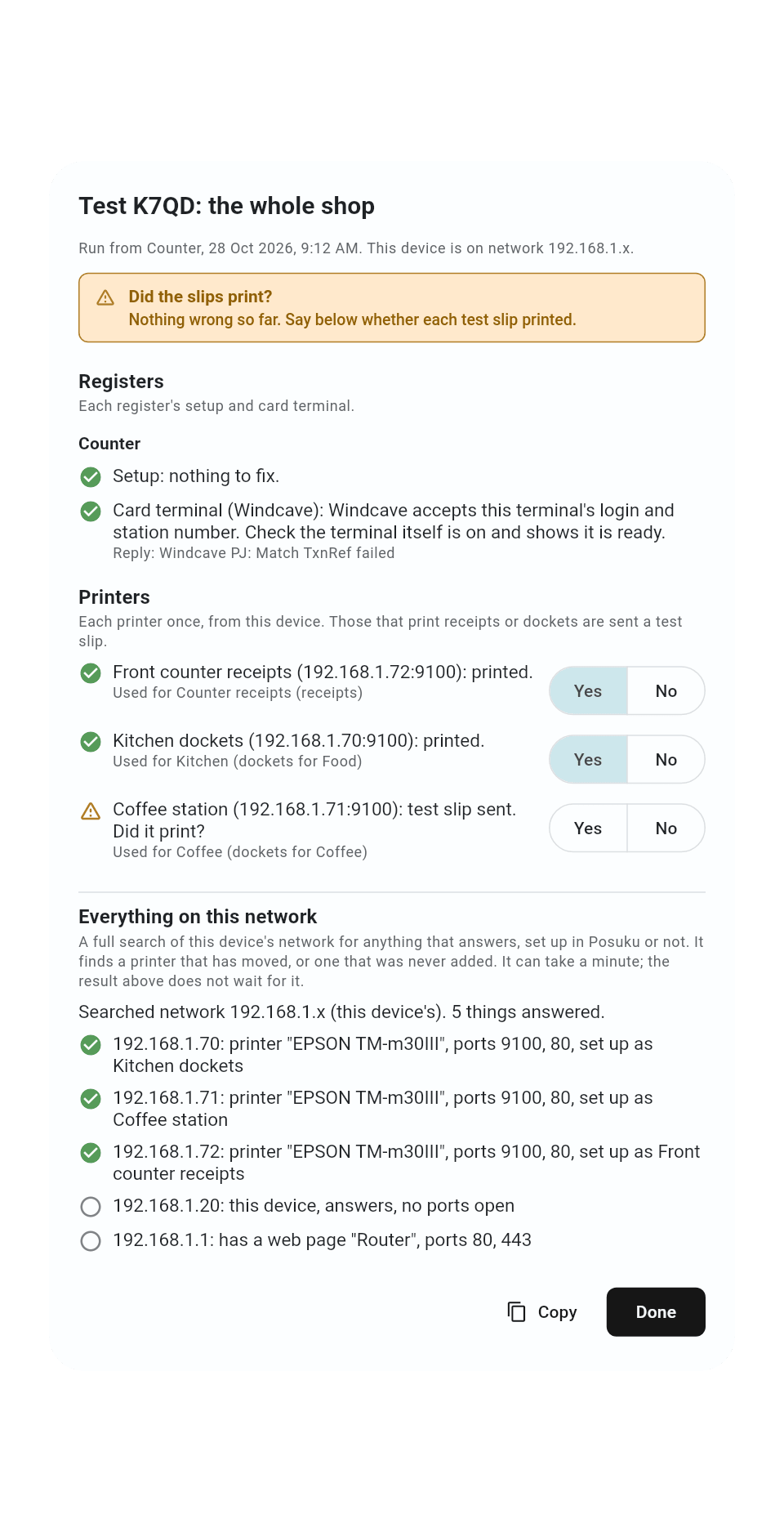
Printers and the network are checked from this device. To check one till in particular, for example "the Bar till will not print", use Test register on that till instead.
Test a register
When a register will not take a card or print, tap Test on its card. It first says what it will check and which printers it will print a slip on, then tests from the device you are holding, in two parts.
The result is at the top: working, problems found, or Cannot tell from here. That last one usually means this device is on a different network from the printers, for example a laptop at home testing the shop's registers. It says which networks, so you know to run the test on a till in the shop.
What the register uses is checked straight away, each line showing a spinner until it answers:
- Setup: the same things as Suggestions, for this register.
- Card terminal: asks the card company whether it will take a payment from this terminal. No money moves. If it says no, it says why, for example that the card company has not switched the terminal on yet.
- Printers: sends a test slip to every printer this register uses. Tick Yes or No for each slip once you have looked. Everything on this network comes after the slips. It searches this device's whole network for anything that answers, set up in Posuku or not, and can take a minute. You do not need to wait for it: the result at the top does not depend on it, and Copy and Done work at any time.
It lists each thing found, with its name where it gives one (a printer usually gives its model). A printer that answers but is not set up in Posuku is flagged. So is a printer set up in Posuku that nothing answers for: often it has a new address, and the printer that is not set up is the same one. When printers are found that are not set up, Find printers, to add them takes you to Find printers.
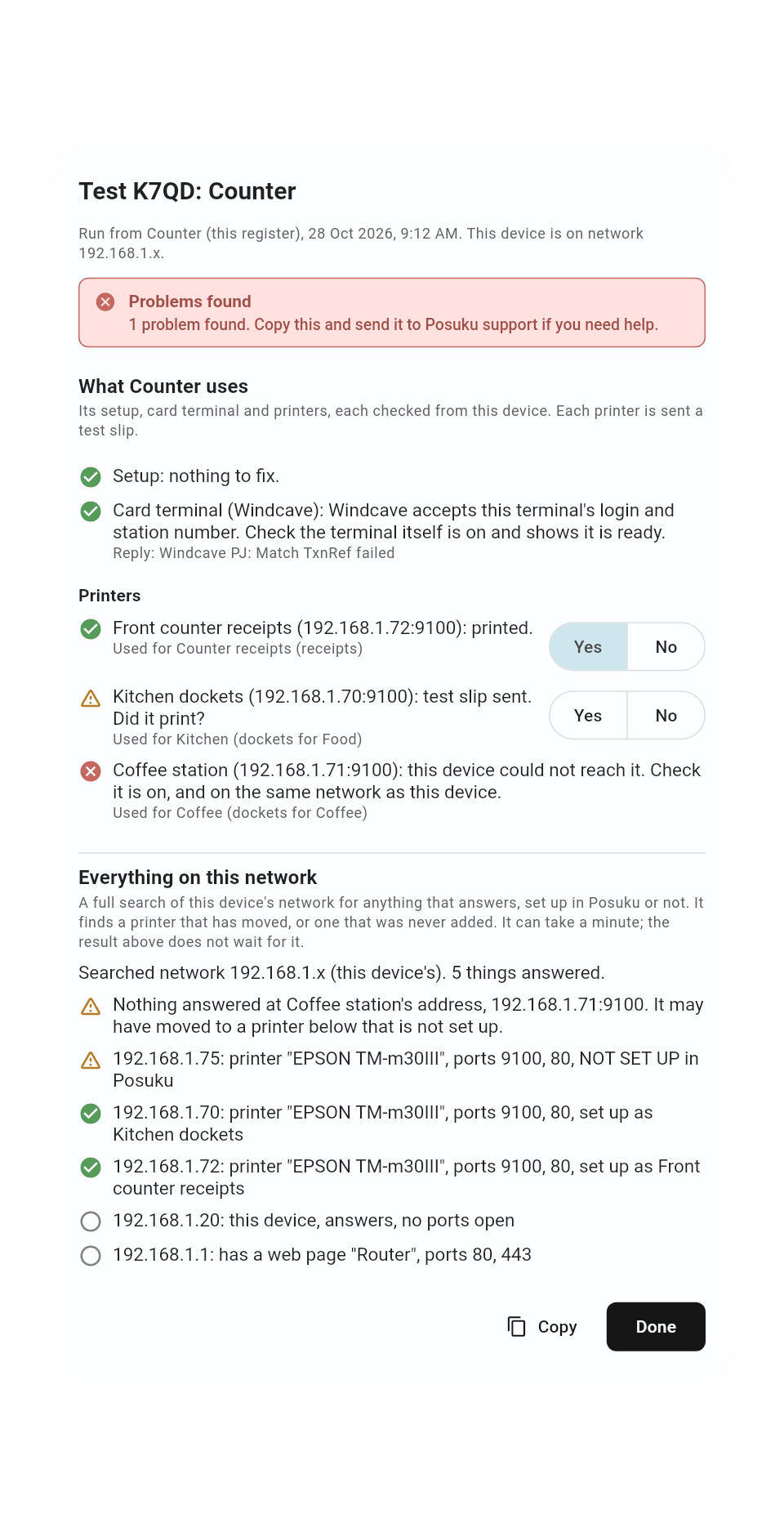
Each slip prints a test code in large letters (like TEST K7QD), the register being tested, the register you ran it from, the printer's name and address, and what that printer prints for the register. So you can test every register in turn, then walk round, collect the slips and match each one to its test.
Tap Copy to paste the results into an email to Posuku support. They are also kept in your audit history (Staff → Audit history) for 90 days, so support can read them too. If you close the window before the network search is done, the search carries on and its results are kept as well.
Run the test from the Posuku app on a till in the shop. A browser cannot reach printers or search the network, so from a browser only the setup and the card terminal are checked.
When a printer is not found
Found or Not found is checked from the device you are holding.
- Check this device is on the shop's network. A laptop at home cannot reach the shop's printers.
- Check the printer is on and plugged in.
- Tap Find it on the printer (on Printers, or in its window from the map). A printer switched off for a while can come back with a new address. Find printers looks for it: tap Test on a printer it finds to be sure, then Use for and its name. It gets the new address, and everything it prints goes with it.
- Not found? Print the printer's own settings page (on most printers, hold the paper feed button while you switch it on), tap Type its address, and type the address it shows.
Ask whoever looks after your internet to give each printer an address that stays the same.
Good to know
- Each docket and receipt has a switch, Prints. Turned off it reads Paused, prints nothing: it stays set up but does not print, like the ice cream docket out of season.
- Removing a printer stops everything that printed on it. You are told what first. Tap Edit on the printer to find Remove.
- Set up printers from the Posuku app on a tablet or computer. A browser cannot reach printers.