Setup
Everything the till needs configured, in one index. The menu calls it Setup; the screen is headed Sales setup.
Where: menu → Sales → Setup.
Most of this is set once when you open and then left alone. Printers and registers are the two you come back to.
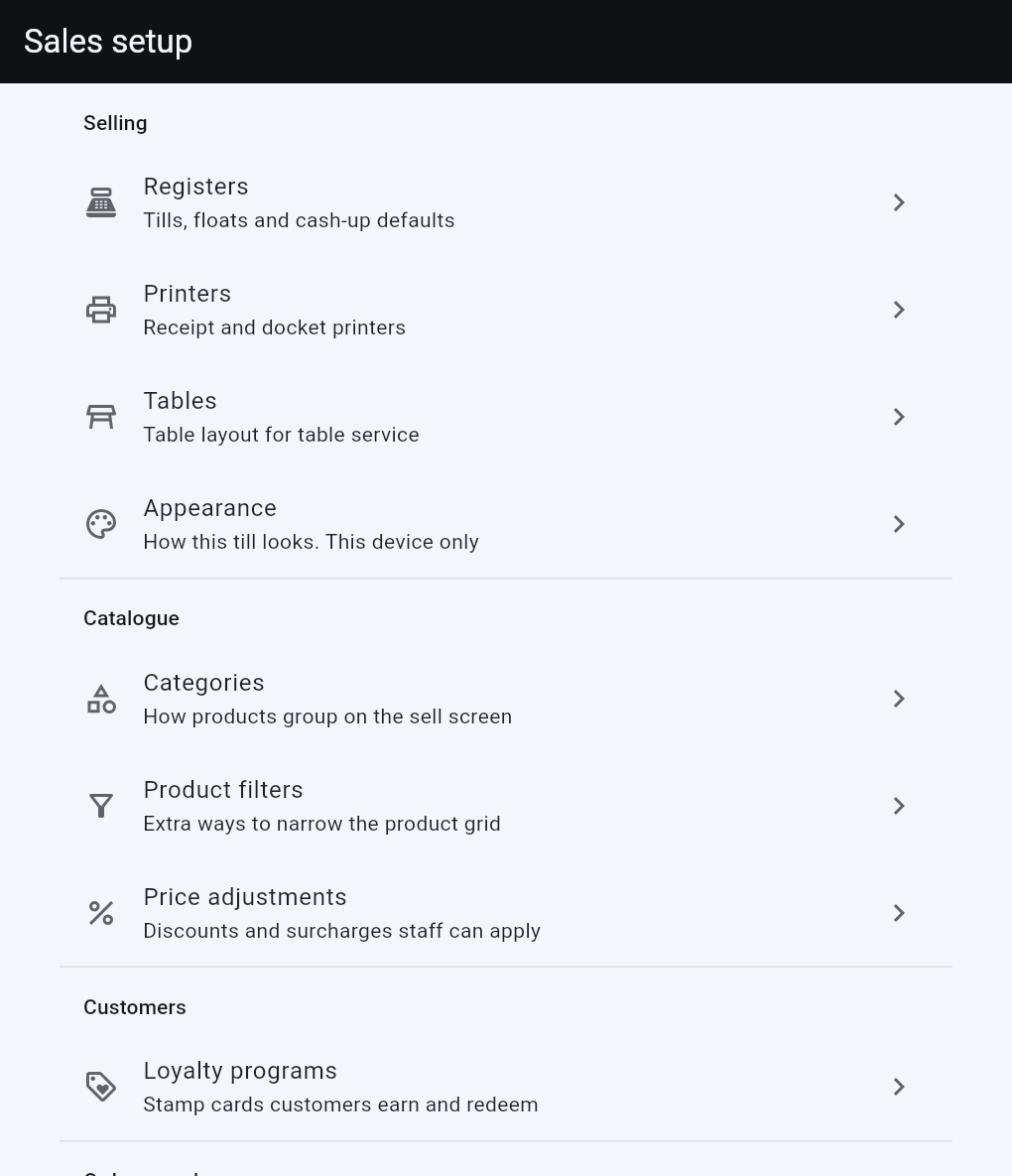
Selling
| Tile | What it holds |
|---|---|
| Registers | Your registers, their floats and card terminals, and which are switched on. You need at least one before anyone can take payment. More |
| Printers | Receipt and docket printers, and a label printer. |
| Registers and printers | Registers, card terminals, printers, receipts and dockets in one place, with what needs fixing. Once a shop switches to it, Registers and Printers leave the menu. More |
| Tables | Floor plans for table service, and the table cards customers scan to order from the table. More |
| Appearance | This device only. How this particular till looks. |
Appearance is the odd one out. Everything else on this screen is your shop's, shared by every device signed in. Appearance is that screen's own. Set the back-bar till dim and the counter till bright and neither affects the other, or your staff's phones.
Catalogue
| Tile | What it holds |
|---|---|
| Categories | How products group on the sell screen. Also what service hours bind to. |
| Product filters | Extra ways to narrow the product grid — the tabs behind the filter icon. |
| Price adjustments | Discounts and surcharges staff can apply, and the surcharges that attach to a category automatically. |
Categories do more work than their name suggests. They group the grid, they are what service hours bind to, they carry the storefront's display order, and a category surcharge lands on every line in it. Getting them right early saves re-doing all four.
Customers
Loyalty programs — stamp cards customers earn and redeem. Appears only if loyalty is turned on for your site.
Order speed
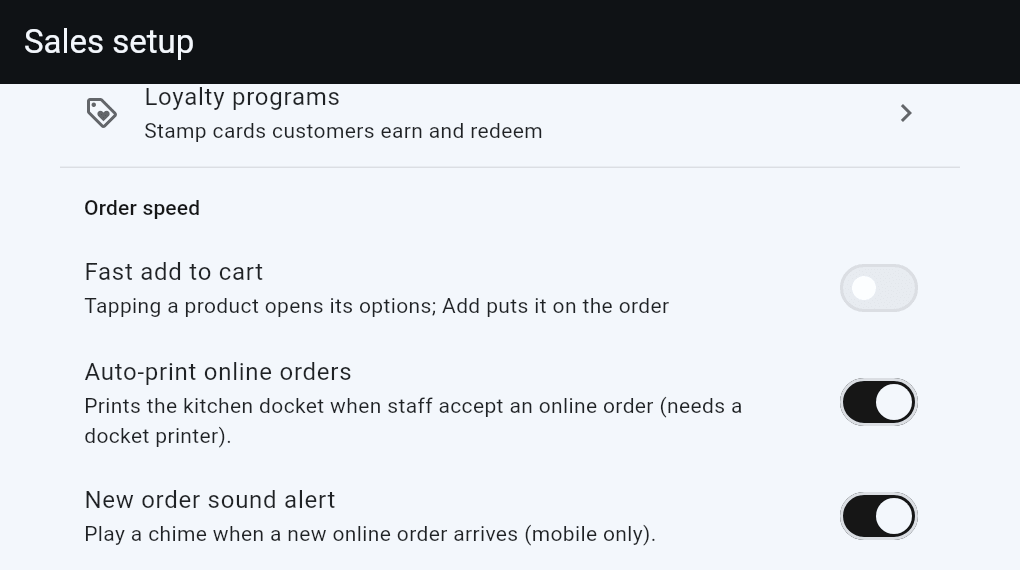
Three switches, saved the moment you flip them. Each confirms with a message; if a save fails you get Could not save: and the switch stays where it was.
Fast add to cart
Off by default.
| Tapping a product on the Sell screen | |
|---|---|
| Off | Opens its options first; Add to cart puts it on the order |
| On | Puts it on the order at once; options open beside it if it has any |
On suits a counter where most things have no options and speed is everything. Off suits a kitchen where nearly every item needs a choice made.
Auto-print online orders
On by default. Prints the kitchen docket when staff accept an online order. Needs a docket printer.
Accepting an order is a promise to make it, so printing it is the expected behaviour — turning this off is the deliberate choice. If the printer fails the order is still accepted; staff see the print failure, not a lost order.
New order sound alert
On by default. A chime when a new online order arrives.
Mobile only, and unreliable on web and desktop. Never treat it as the thing watching your queue — the red strip across the top of Sell and Orders is what you rely on. See Orders.
Good to know
- These three switches used to live in general settings. They are till behaviour, not shop identity, so they sit with the till.
- Every tile here opens a screen that works on its own; nothing on this page needs saving as a whole.
- The Setup row is visible to everyone. If you have set a bar on settings, a staff member below it is asked for a senior PIN when they tap it, rather than finding the row missing. With no bar set, nobody is asked.
- One approval covers the visit, not the tap. Once a senior PIN has approved the way in, everything under Setup stays open until you leave it, so a manager does not have to stand there re-approving each tile.